
Is your AppLock fingerprint not working after updating your phone to Android 14? You place your finger on the sensor, but AppLock does not unlock the protected app, the fingerprint option disappears, or the app keeps asking for your PIN or pattern.
This problem can happen for several reasons. An AppLock app depends on Android’s biometric system, its own compatibility with your Android version, and sometimes the phone manufacturer’s battery and background-app settings. Android 14 also introduced several system behavior changes that can affect how apps work in the background, especially apps that depend on background services or activity launches.
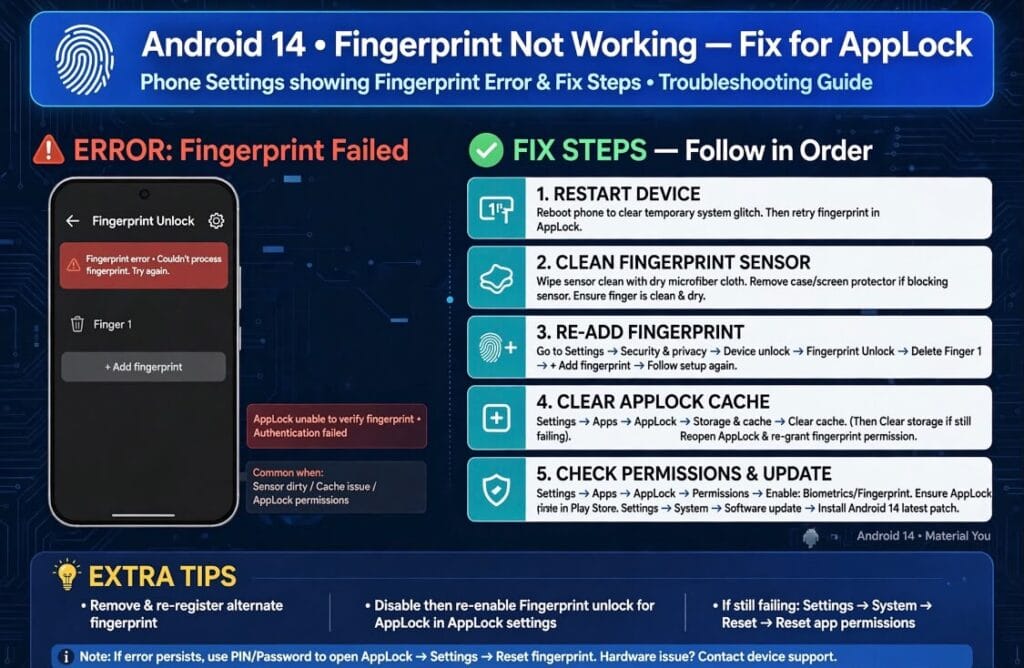
The good news is that you do not always need to uninstall AppLock.
In this guide, you will learn 5 practical ways to fix AppLock fingerprint not working on Android 14. We will also cover Samsung, Xiaomi, Redmi, OPPO, Vivo, Infinix, Tecno, and other Android phones, along with what to check if fingerprint unlock still fails.
Table of Contents
Why Is AppLock Fingerprint Not Working on Android 14?
There is no single reason why fingerprint unlock can stop working.
The problem may be caused by an outdated AppLock version, a changed fingerprint enrollment, battery restrictions, corrupted app cache, or an AppLock app that does not properly support your Android version.
Android’s biometric system is handled through system APIs such as BiometricPrompt, which allows apps to request fingerprint or other supported biometric authentication. Android can also use the phone’s PIN, pattern, or password as a device-credential fallback.
Android 14 also contains changes that can affect apps targeting the newer API level. For example, Android 14 adds stricter requirements around foreground services and background activity launches.
This means an older AppLock application may not behave exactly the same way after an Android update.
Common reasons include:
- AppLock is outdated
- Fingerprint enrollment has changed
- AppLock’s biometric option is disabled
- Battery optimization restricts AppLock
- AppLock cache has become corrupted
- The phone’s fingerprint sensor is having a system problem
- AppLock is not fully compatible with the current Android version
- The app has been restricted from running in the background
- A recent Android or security update changed app behavior
Android’s power-management system can restrict background activity, and manufacturers can apply additional restrictions to individual apps.
Before Trying the Fixes, Test Your Fingerprint
Before changing AppLock settings, check whether your phone’s fingerprint unlock works normally.
Lock your phone and try unlocking it with your registered fingerprint.
If your fingerprint also fails on the phone’s lock screen, the problem may not be AppLock at all.
In that case, first:
- Clean the fingerprint sensor.
- Make sure your finger is dry and clean.
- Restart your phone.
- Try another registered finger.
- Check your phone’s fingerprint settings.
If the fingerprint works perfectly for unlocking the phone but fails only inside AppLock, continue with the fixes below.
5 Fixes for AppLock Fingerprint Not Working
1. Check AppLock’s Biometric Settings
The first thing to check is whether fingerprint unlocking is still enabled inside AppLock.
Many AppLock applications have their own security settings where you can choose between a PIN, pattern, password, and fingerprint.
Open AppLock and look for options such as:
- Fingerprint Unlock
- Fingerprint Authentication
- Biometric Unlock
- Use Fingerprint
- Unlock With Biometrics
Turn the fingerprint option off, close AppLock, and then turn it on again.
Depending on your phone and AppLock version, you may also see Android’s biometric authentication prompt when you enable the feature.
It is worth noting that Android does not generally provide a normal setting called “Allow Biometric and Fingerprint” under every app’s Permissions page. Apps normally use Android’s biometric authentication APIs rather than a simple permission switch. Android’s official biometric documentation describes fingerprint authentication through BiometricPrompt and supported authenticator types.
Try this first:
AppLock → Settings → Security → Fingerprint/Biometric Unlock → Enable
The exact menu can be different depending on the AppLock version.
If you cannot find the fingerprint option at all, your AppLock version may not support the feature correctly on your current Android version.
2. Turn Off Battery Optimization for AppLock
If AppLock fingerprint not working on Android 14 only happens after your phone has been idle for some time, battery restrictions are worth checking.
Android uses power-management features to reduce background activity and battery consumption. Apps can be placed into optimized or restricted states, and those restrictions can affect background work.
The exact menu depends on your phone manufacturer.
Look for a setting similar to:
Settings → Apps → AppLock → Battery → Unrestricted
or:
Settings → Battery → App Battery Usage → AppLock → Unrestricted
Some phones may show:
- Don’t optimize
- Allow background activity
- Unrestricted
- No restrictions
- Allow background usage
Choose the option that allows AppLock to operate normally in the background.
Samsung
You may find battery controls under:
Settings → Apps → AppLock → Battery
Check whether background usage is restricted.
Xiaomi or Redmi
Xiaomi devices may provide additional battery controls. Look under the AppLock battery settings and check whether background activity is restricted.
OPPO or Vivo
These phones can also include manufacturer-specific background management. Look for AppLock under battery or app-management settings.
Do not assume that every Android 14 phone has the same menu. The exact wording can change by manufacturer and software version.
3. Delete and Re-Add Your Fingerprint
If your phone’s fingerprint works but AppLock suddenly stopped recognizing it, re-enrolling your fingerprint can help.
Android biometric authentication relies on fingerprints enrolled in the device’s security system. Apps do not normally store your raw fingerprint themselves; they request authentication through Android’s biometric system.
Open your phone’s fingerprint settings.
The menu may look similar to:
Settings → Security & Privacy → Device Unlock → Fingerprint
On other phones it may be:
Settings → Security → Fingerprint
or:
Settings → Biometrics and Security → Fingerprints
The exact location depends on your device.
Then:
- Open fingerprint settings.
- Confirm your current fingerprints.
- Remove an old or unreliable fingerprint if necessary.
- Add your fingerprint again.
- Complete the fingerprint scan.
- Restart the phone.
- Open AppLock.
- Enable fingerprint unlocking again.
- Test the protected app.
Why can this help?
If your fingerprint enrollment was changed, deleted, or affected by a system update, AppLock may need to establish a new biometric authentication flow.
Android also supports cryptographic keys that can be invalidated when biometric enrollment changes, which is one reason biometric-dependent app features may need to be set up again after fingerprint changes.
4. Clear the AppLock Cache
Another simple fix is clearing the AppLock cache.
A damaged or outdated cache can sometimes cause an app to behave unexpectedly after an Android or application update.
Go to:
Settings → Apps → AppLock → Storage → Clear Cache
Do not immediately choose Clear Data unless you understand what it will remove.
Clearing the cache is the safer first step because it removes temporary files without intentionally resetting all of the app’s stored information.
After clearing the cache:
- Close AppLock.
- Restart your phone.
- Open AppLock.
- Enter your normal PIN or pattern if requested.
- Open the fingerprint settings.
- Enable fingerprint unlock.
- Lock one test application.
- Try opening it again with your fingerprint.
If fingerprint authentication starts working again, the issue may have been caused by temporary app data.
5. Update AppLock to a Version Compatible With Android 14
If none of the previous methods works, check your AppLock version.
This is especially important if you installed an older APK several months or years ago.
Android 14 introduced changes that developers may need to account for. For example, apps targeting Android 14 have new requirements for foreground services, and Android 14 also changes certain background activity behaviors.
Android 14 also blocks installation of apps targeting very old Android API levels below 23, although this is different from ordinary biometric compatibility problems.
So if your AppLock is an old release, installing a newer version may be necessary.
Before updating AppLock:
- Check the version number.
- Check the Android compatibility information.
- Use a trusted download source.
- Avoid modified APKs.
- Check the app permissions.
- Back up anything important inside the app.
- Make sure the APK is actually from the developer or a source you trust.
Do not assume that a file called AppLock 6.1+ is automatically safe simply because its filename contains a newer version number.
The version number alone does not prove that an APK is genuine.
AppLock Fingerprint Still Not Working? Try These Extra Checks
If the five main fixes did not solve the problem, check these additional points.
Restart Your Android Phone
A simple restart can reload system services and clear temporary problems.
After restarting, test your fingerprint on the phone’s lock screen first and then inside AppLock.
Check for a Phone Software Update
Go to your phone’s system update section and check whether another update is available.
Sometimes a later security or system update can resolve compatibility issues introduced by an earlier release.
Check Whether Another App Is Blocking AppLock
If you have multiple security, cleaner, booster, antivirus, or app-locking applications installed, they may interfere with each other.
Try temporarily disabling unnecessary security or app-management tools and test AppLock again.
Do not remove your main device security features simply to test an unknown application.
Check Your Device’s Fingerprint Sensor
If fingerprint authentication is failing everywhere, the problem may be with the device rather than AppLock.
Test fingerprint unlocking several times from the normal Android lock screen.
If it fails there too, focus on your phone’s fingerprint settings rather than the AppLock application.
AppLock Fingerprint Not Working on Samsung
Samsung phones can have additional battery and background controls.
If AppLock works immediately after opening but stops working later, check:
Settings → Apps → AppLock → Battery
Look for background activity or battery restrictions.
Also check:
Settings → Security and privacy → Biometrics
Confirm that your fingerprint is still registered and works for normal device unlocking.
If the phone itself cannot recognize the fingerprint, re-registering the fingerprint should be considered before changing AppLock settings.
AppLock Fingerprint Not Working on Xiaomi or Redmi
Xiaomi and Redmi phones can apply aggressive battery management to some applications.
Open the AppLock app settings and look for battery or background activity controls.
Depending on your HyperOS or MIUI version, the menu names can differ.
The main goal is to make sure AppLock is not being unnecessarily restricted in the background.
Also check whether your fingerprint works normally for phone unlocking.
AppLock Fingerprint Not Working on OPPO or Vivo
OPPO and Vivo devices can also have manufacturer-specific battery and background management settings.
Check AppLock under:
Settings → Apps → AppLock → Battery
and look for options related to background activity, auto-start, or battery restrictions.
Do not enable every available permission automatically. Only allow settings that AppLock actually needs for its intended function.
Why AppLock May Stop Working After an Android Update
An Android update does not necessarily mean that the fingerprint sensor itself has stopped working.
The phone’s hardware and Android’s biometric system can continue working while an older third-party AppLock has compatibility problems.
Android’s biometric framework supports authentication through system APIs, while individual apps need to correctly implement those APIs.
Android 14 also introduced multiple changes affecting application behavior, particularly for apps targeting API level 34. These include foreground-service requirements and restrictions around certain background activity launches.
That is why updating AppLock can sometimes be more useful than repeatedly changing your fingerprint.
Do You Need to Reinstall AppLock?
Not always.
Try the fixes in this order:
- Check fingerprint settings inside AppLock.
- Test your phone’s fingerprint.
- Restart the device.
- Check battery restrictions.
- Re-add your fingerprint.
- Clear AppLock cache.
- Update AppLock.
- Reinstall only if necessary.
If you reinstall AppLock, remember that removing the application may reset its settings or remove information stored locally by the app.
Make sure you know your AppLock PIN or recovery method before uninstalling it.
Avoid These Common AppLock Mistakes
When troubleshooting AppLock fingerprint not working, avoid downloading several random APK versions from different websites.
This can create more problems instead of solving the original one.
Also avoid:
- Modified AppLock APKs
- “Unlimited” versions
- Cracked versions
- Unknown APK mirrors
- Apps requesting unnecessary permissions
- Random fingerprint booster applications
- Apps claiming to repair your fingerprint sensor
- Sharing your AppLock password with strangers
An APK is an installable application package, so its source matters. Android also applies security protections around application installation and permissions.
Quick AppLock Fingerprint Fix Checklist
If you want a short checklist, try these steps:
Fingerprint works on phone?
→ Yes: Continue troubleshooting AppLock.
Fingerprint option enabled in AppLock?
→ Check AppLock security settings.
Battery restriction enabled?
→ Allow normal background activity where appropriate.
Fingerprint recently changed?
→ Re-register the fingerprint.
AppLock cache causing problems?
→ Clear cache and restart.
Old AppLock version?
→ Update to a compatible release from a trusted source.
Still not working?
→ Check phone software updates or reinstall AppLock after confirming your recovery details.
Frequently Asked Questions
Why is my AppLock fingerprint not working after Android 14?
The problem can come from an outdated AppLock version, changed fingerprint enrollment, battery restrictions, app cache problems, or compatibility issues. Android 14 introduced several application behavior changes that developers need to support correctly.
How do I fix AppLock fingerprint not working?
Start by testing whether your fingerprint works on the phone’s lock screen. Then check AppLock’s biometric setting, battery restrictions, fingerprint enrollment, cache, and app version.
Does Android 14 disable AppLock fingerprint?
Android 14 does not simply disable fingerprint authentication for AppLock. Apps use Android’s biometric authentication framework, and compatibility depends on how the individual AppLock application implements it.
Why does AppLock ask for my PIN instead of fingerprint?
AppLock may use your PIN or another credential as a fallback when biometric authentication is unavailable or when the app’s biometric state needs to be re-established. Android’s biometric system supports device credentials such as PIN, pattern, and password as an authentication option.
Should I delete and add my fingerprint again?
If the fingerprint works inconsistently or AppLock stopped recognizing it after a system or fingerprint change, re-registering the fingerprint can be worth trying.
Will clearing AppLock cache delete my password?
Clearing the cache normally removes temporary files rather than intentionally clearing the app’s complete stored data. However, Android menus can vary, so make sure you select Clear Cache, not Clear Data, if you want to preserve the app’s stored settings.
Does battery optimization affect AppLock?
Battery and background restrictions can affect how applications operate when they are not actively on screen. Android provides different battery states, including optimized and restricted states, and manufacturers can apply additional restrictions.
Why is AppLock fingerprint working sometimes but not always?
Intermittent problems can be related to battery restrictions, background app management, fingerprint enrollment, app bugs, or compatibility problems. Check whether the issue appears mainly after the phone has been idle or after restarting the device.
Is it safe to download an AppLock APK?
Safety depends on the source and the exact APK. Avoid modified or cracked versions and verify the developer, version, permissions, and download source before installation.
Final Solution for AppLock Fingerprint Problems
When AppLock fingerprint not working on Android 14, the problem is usually worth troubleshooting before you replace the entire app.
Start with the basics: make sure the phone’s own fingerprint unlock works, check AppLock’s biometric setting, remove unnecessary battery restrictions, re-register your fingerprint, clear the AppLock cache, and finally update the application.
If the problem started immediately after an Android update, compatibility should also be considered. Android 14 introduced several changes that can affect how apps behave, particularly applications that depend on background services and system interactions.
The most important point is that there is no single Android 14 setting that fixes every AppLock fingerprint problem. Samsung, Xiaomi, OPPO, Vivo, Infinix, Tecno, and other manufacturers can use different settings and battery-management systems.
If the fingerprint works normally for your phone but not inside AppLock, focus on the AppLock configuration and compatibility. If fingerprint fails everywhere, investigate the phone’s biometric system first.
Article Disclaimer: This guide provides general Android troubleshooting information. Menu names and available settings can vary by device, Android version, manufacturer, and AppLock release. Always download applications from a source you trust and review permissions before installation.
For More Latest App and Tech Updates, Visit APK Promex