
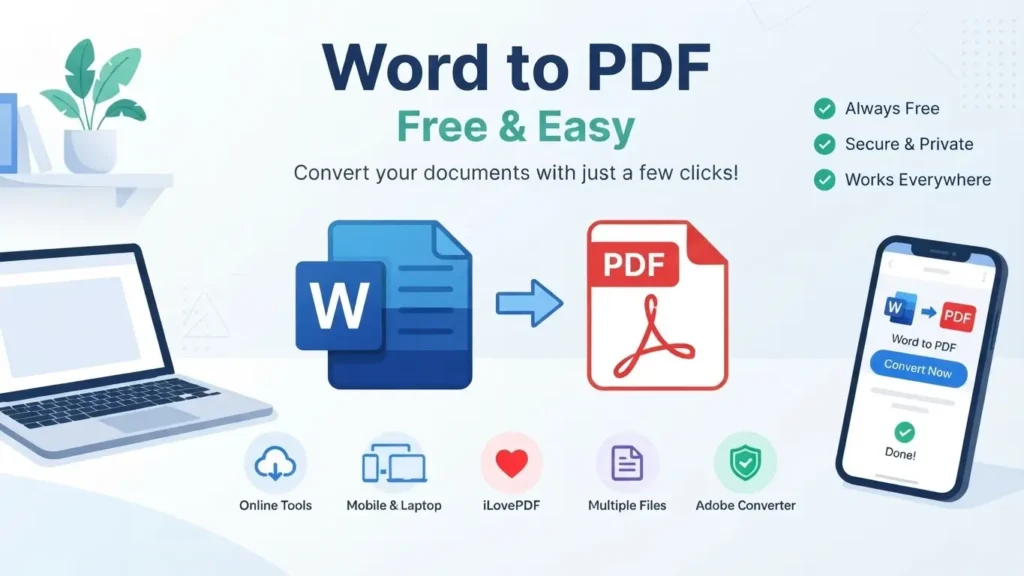
Learn how to convert Word to PDF for free on Windows, Mac, Android, and iPhone using Microsoft Word, online tools, Google Docs, and more.
Learn easy ways to convert Word to PDF for free on your phone or computer. This guide covers Microsoft Word, online converters, Android, iPhone, offline methods, and formatting tips.
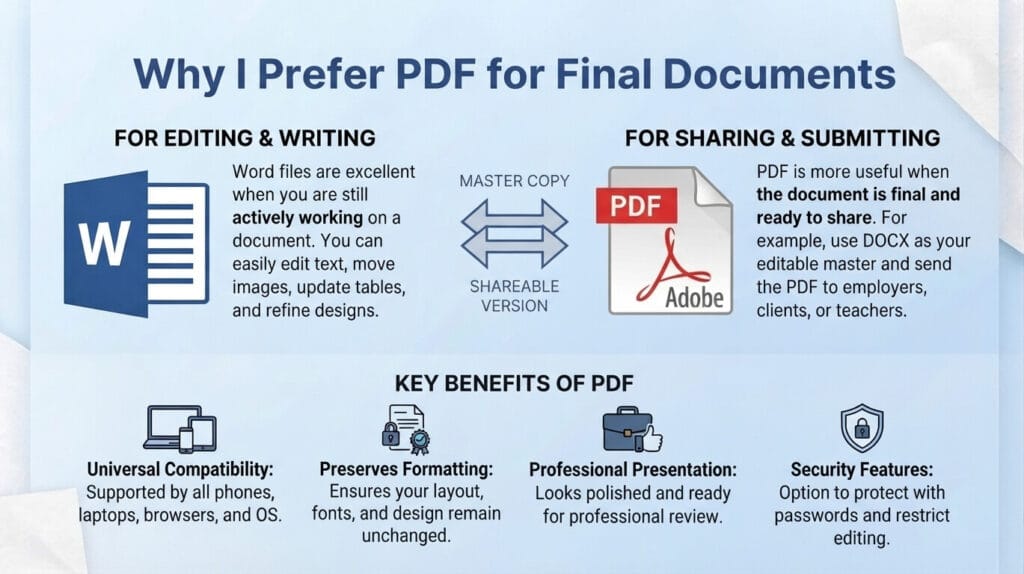
Why I Prefer PDF for Final Documents
A Word file is excellent when you are still writing or editing a document. You can easily change the text, move images, update tables, and adjust the design.
PDF is more useful when the document is ready to share.
For example, if I create a CV in Word, I can keep the DOCX file as my editable master copy and send the PDF version to an employer. The same approach works for assignments, reports, invoices, quotations, and business documents.
PDF is also supported by most phones, laptops, browsers, and operating systems, so the person receiving the file usually does not need Microsoft Word.
Main reasons to convert Word to PDF
- Keeps the document layout consistent
- Makes sharing easier
- Looks more professional
- Works well for printing
- Can be uploaded to many online forms
- Reduces accidental editing of the final document
- Can be opened on Android, iPhone, Windows, and Mac
Table of Contents
How to Convert Word to PDF for Free
The easiest method depends on the device you are using.
If Microsoft Word is already installed, you can normally export your document directly as PDF. If you do not have Word, free office software and online converters provide other options.
Here are the main methods:
- Microsoft Word
- Online Word to PDF converters
- Adobe online tools
- iLovePDF
- Google Docs
- LibreOffice
- Mobile office applications
For a regular document, any of these methods can work well. I recommend choosing the method that matches your device and the type of document you are converting.
Convert Word to PDF Using Microsoft Word
If you have Microsoft Word on your computer, you usually do not need another application.
This is one of the most convenient ways to convert Word to PDF because your document can stay on your computer instead of being uploaded to an online service.
Simple steps
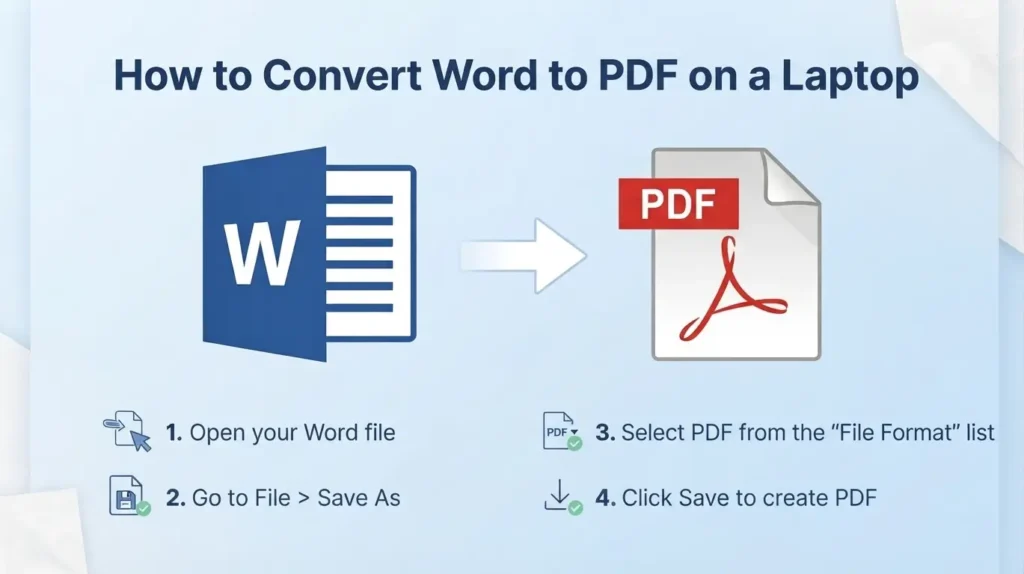
Step 1: Open your DOC or DOCX document in Microsoft Word.
Step 2: Check the document before exporting it. Look at the pages, images, tables, headings, fonts, and spacing.
Step 3: Open the File menu and choose the Save As or Export option, depending on your version of Word.
Step 4: Select PDF as the file format.
Step 5: Choose where you want to save the new PDF.
Step 6: Save the file and open the PDF once to check the final result.
The original Word document normally remains available, so you can continue editing it later.
How to Convert Word to PDF on a Laptop
Whether you use a Windows laptop or MacBook, there are several ways to create a PDF.
If Microsoft Word is installed, its built-in PDF export is usually the easiest option. If Word is not available, you can use an online converter or another office application that supports PDF export.
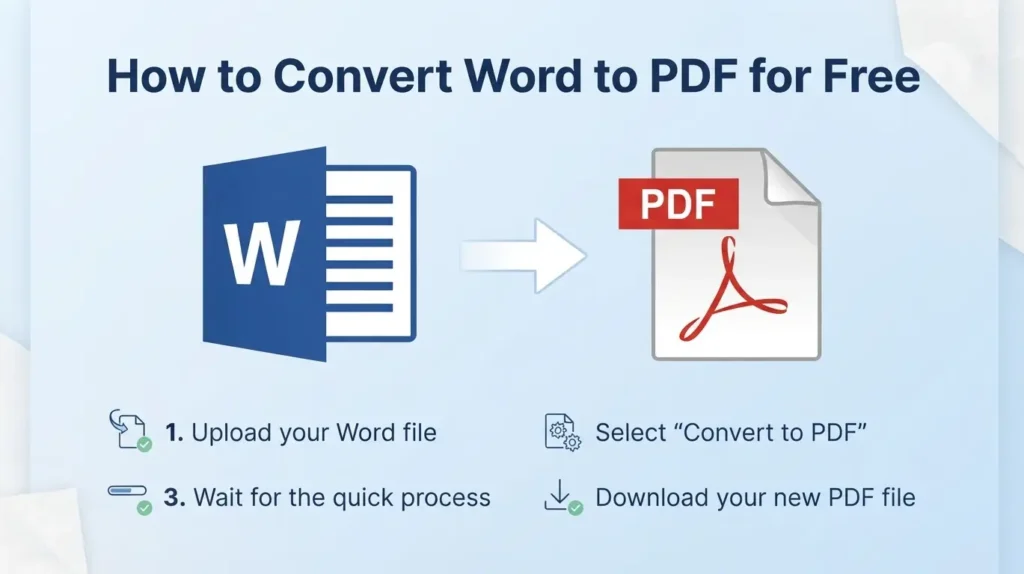
For online conversion, the process is generally simple:
- Open a trusted Word-to-PDF website.
- Upload your DOC or DOCX file.
- Start the conversion.
- Wait for the PDF to be created.
- Download the finished file.
- Open it and check the pages.
Online tools can be useful when you are using a computer that does not have Word installed.
Word to PDF on Android
You can also convert Word to PDF on Android without using a laptop.
This is useful when someone sends you a DOCX file through WhatsApp, email, Telegram, Google Drive, or another platform and you need a PDF quickly.
If you have a Word or compatible office application installed, open the document and look for an option such as Share, Export, Save As, or Send a Copy. Select PDF if that option is available.
Another option is using an online converter through your Android browser.
The basic process is:
- Open the converter website
- Select your Word file
- Upload the document
- Start conversion
- Download the PDF
- Check the finished document
The exact menu names can change between applications and Android versions, but the overall process is usually similar.
How to Convert Word to PDF on iPhone
iPhone users can also convert Word files into PDF.
Open the document using Microsoft Word or another compatible application. From the sharing or export menu, select the PDF option when available.
You can also use a browser-based converter if you do not want to install an additional application.
After creating the PDF, open it from the Files app and quickly check the pages before sending it.
Word to PDF Free Online
Online conversion is a popular choice because you do not need to install software.
Tools such as iLovePDF provide Word-to-PDF conversion along with other PDF features. Adobe Acrobat Online also provides browser-based PDF tools.
These services can be useful when you are working from a phone, using a shared computer, or simply need to convert one file quickly.
However, remember that an online converter requires you to upload the document. If your file contains private information, consider whether an online service is appropriate before uploading it.
Convert Word to PDF Using Google Docs
Google Docs is another useful option if your Word document is already stored in Google Drive.
You can upload or open the Word document in Google Docs and then use the download or export options to create a PDF.
This can be convenient for students and people who work across multiple devices because the document can be accessed through a browser.
It also gives you another option when Microsoft Word is not installed.
Can I Convert Word to PDF Offline?
Yes. You can convert Word to PDF without internet if you have suitable software installed on your computer.
Microsoft Word is one example. LibreOffice is another free office suite that can open compatible Word files and export documents as PDF.
Offline conversion can be a good choice for private documents because the file does not need to be uploaded to an online conversion website.
This can be useful for documents containing personal information, private business details, contracts, financial records, or other sensitive content.
How to Convert Word to PDF Without Losing Formatting
One common concern is whether the PDF will look exactly like the Word document.
In most normal documents, the conversion process works well, but it is still important to check the final file.
Before converting, pay attention to:
Fonts
Use fonts that are properly supported. Unusual fonts can sometimes cause visual changes.
Images
Check that images are positioned correctly and do not move outside the page.
Tables
Large tables should be checked carefully because they may extend beyond the printable area.
Page Breaks
Look through the document page by page and make sure headings and paragraphs are not separated in an unwanted way.
Headers and Footers
Check that headers, footers, page numbers, and other repeated elements appear correctly.
The most important step is simple: open the final PDF before sending it.
How to Convert Multiple Word Files to PDF
If you have several Word documents, converting them one by one can take extra time.
Some desktop programs and online PDF services support multiple-file or batch conversion. The exact feature depends on the software or service you choose.
Before starting, put your documents in one folder and use clear filenames.
For example:
- CV-2026.docx
- Assignment.docx
- Invoice-01.docx
- Invoice-02.docx
- Business-Report.docx
After conversion, check the resulting PDFs and make sure each file has the correct name and content.
Word to PDF for Students in Pakistan
Students often need PDFs for university assignments, scholarship applications, research work, presentations, and online submissions.
If you prepare your assignment in Word, converting it to PDF before uploading can make the final submission easier to manage.
Before submitting, check:
- Page numbers
- Headings
- References
- Images
- Tables
- Spacing
- Margins
- Blank pages
- File size
Also check your university or college submission instructions. Some portals have specific requirements for file size or document format.
Word to PDF for CVs and Job Applications
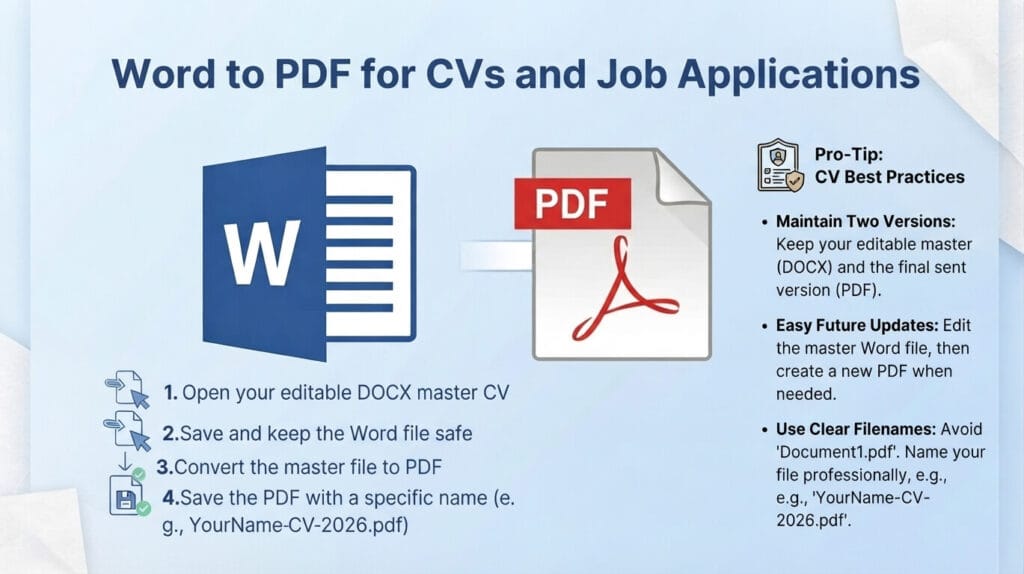
A CV is another document that is often better shared as PDF.
I recommend keeping two versions:
DOCX: Your editable master CV
PDF: The final version you send to companies or upload to job websites
This makes future updates easier because you can edit the original Word file and create a new PDF when needed.
Use a clear filename such as YourName-CV-2026.pdf instead of something generic like Document1.pdf.
Is Free Word to PDF Conversion Safe?
Free conversion can be convenient, but you should still choose your tools carefully.
Avoid websites that show excessive pop-ups, suspicious download buttons, unexpected software downloads, or requests for unrelated permissions.
Never provide your email password, banking password, or other unrelated login details simply to convert a document.
For sensitive documents, an offline method can be a better option.
If you use an online converter, review its privacy and file-handling information, especially when the document contains personal or business information.
What If the PDF Is Too Large?
Sometimes a Word document containing many high-resolution images creates a large PDF.
If the file is too large for an email or online application, you can use a PDF compression tool such as iLovePDF PDF Compressor.
You can also reduce image sizes in the original Word document before creating the PDF.
Always keep a copy of the original PDF before applying heavy compression, especially when image quality matters.
Word to PDF vs PDF to Word
These two terms describe opposite processes.
Word to PDF: DOC or DOCX → PDF
This is useful when you have finished editing and want to share the document.
PDF to Word: PDF → DOC or DOCX
This is useful when you need to edit content from an existing PDF.
Understanding the difference can save time when searching for the right conversion tool.
Common Word to PDF Problems
Most conversions are straightforward, but you may occasionally notice a problem.
Fonts look different: Try using common fonts and check the final PDF.
Images move: Review image positioning and wrapping settings in Word.
Tables are cut off: Check page size, margins, and table width.
Blank pages appear: Look for unnecessary page breaks or paragraph spacing.
PDF is too large: Reduce image sizes or use a PDF compression tool.
Formatting changes: Open the original and PDF side by side to find the difference.
Final Thoughts
Learning how to convert Word to PDF is a useful skill for students, professionals, freelancers, businesses, and everyday users in Pakistan. The process is simple once you know which method works best for your device.
If Microsoft Word is installed on your laptop or computer, exporting directly to PDF is usually the most convenient approach. On Android or iPhone, you can use a compatible office application or an online converter. Google Docs and free desktop software such as LibreOffice provide additional choices.
For private documents, offline conversion can be a practical option. For quick everyday work, online PDF tools can save time.
My main tip is to always open the finished PDF before sending or submitting it. Check the formatting, images, tables, page numbers, file name, and size.
With the right method, you can convert Word to PDF for free in just a few steps and have a clean document ready for school, work, business, email, or online applications.
For More Latest App and Tech Updates, Visit APK Promex