If you share your phone with family or friends, some apps deserve an extra layer of privacy. WhatsApp may contain private chats, Gallery can hold personal photos, and banking apps can provide access to sensitive financial information. That is where an app lock can help.
But how app lock works is different on Android and iPhone. Android has traditionally allowed third-party apps to use system permissions to monitor app activity and place a lock screen over another app. iPhone takes a more controlled approach and now includes Apple’s own built-in option to lock supported apps with Face ID, Touch ID, or a passcode.
So, are app locks safe? The answer depends on which type of app lock you use, what permissions it needs, and whether your phone already provides a built-in option.
In this guide, you will learn how app locks work, what permissions they may request, how Android and iPhone handle app locking, the main benefits and risks, and what to check before trusting an app with your privacy.
Table of Contents
How App Lock Works on Android
Android gives apps access to certain special permissions that can be used for features such as monitoring app usage or displaying content over other apps. Because of this, third-party Android app lockers can work differently from Apple’s built-in system.
A typical third-party Android app lock may use several parts of the system.
Usage Access Helps Identify App Activity
Some app lockers use Usage Access to determine which apps are being opened or used. This allows the locker to recognize when you launch an app that you have selected for protection.
This permission is important because an app lock needs some way to know when a protected app is being accessed.
However, users should not automatically grant every permission an app requests. Check what the permission does and whether it is actually needed for the advertised feature.
Overlay Permission Can Display the Lock Screen
Some Android app lockers use the Display over other apps or overlay capability to place their authentication screen above another application.
Android documents this capability through the SYSTEM_ALERT_WINDOW permission. The operating system requires the user to explicitly approve this special access.
For example, you may open WhatsApp and the app lock can display its PIN, pattern, or biometric screen before allowing access.
This is one reason you should be careful when installing an unfamiliar app locker. An application with powerful permissions should come from a developer you trust.
Background Activity Keeps the Lock Ready
Third-party app lockers may also need to remain active so they can react when a protected application is opened.
The exact method varies between apps and Android versions. Modern Android versions also place limits on background activity and battery use, so an app-locker’s behavior can differ from one phone to another.
This means an app that worked perfectly on an older Android phone may not behave exactly the same way on a newer device.
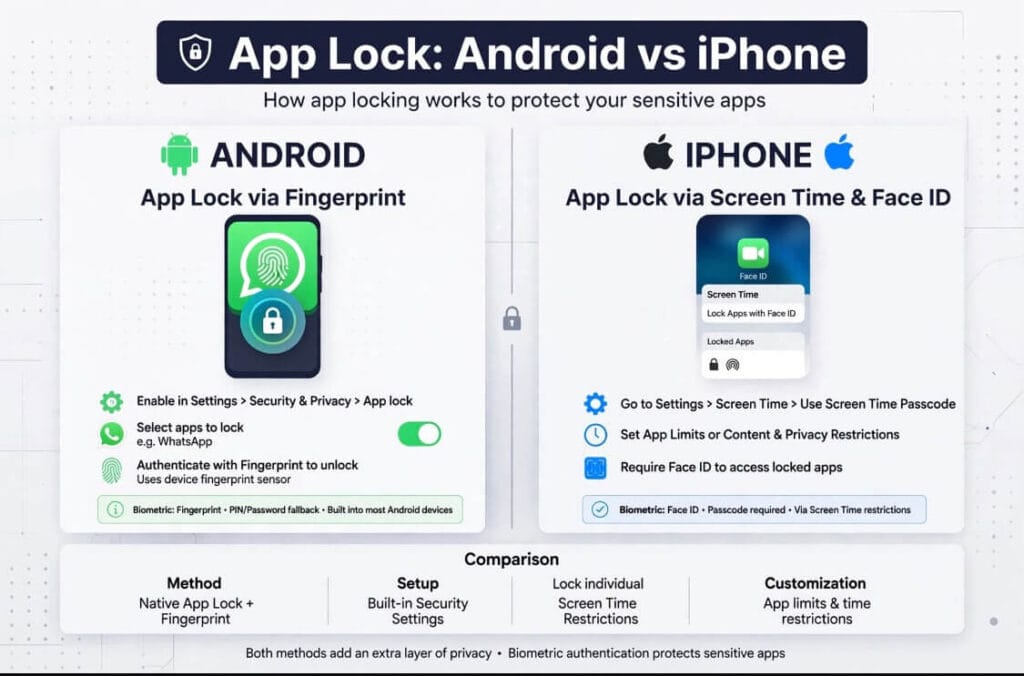
How App Lock Works on iPhone
The situation is much simpler on modern iPhones.
Apple introduced a built-in option to lock or hide apps in iOS 18. You can touch and hold a supported app icon and choose Require Face ID, Require Touch ID, or Require Passcode, depending on the iPhone and its authentication method.
When an app is locked, authentication is required before it can be opened.
Apple also limits where information from a locked app appears. For example, information from a locked app can be excluded from places such as notification previews, Search, and Siri suggestions.
How to Lock an App on iPhone
The process is simple:
- Find the app on your Home Screen.
- Touch and hold the app icon.
- Tap Require Face ID, Require Touch ID, or Require Passcode.
- Authenticate when prompted.
- The app will require authentication when you open it again.
Apple also provides a Hide and Require Face ID option for supported downloaded apps. A hidden app moves to the Hidden folder in the App Library and requires authentication to access.
This is important for anyone searching for an app lock for iPhone in 2026: you generally do not need to install a separate app just to get basic app-lock protection.
Android vs iPhone App Lock: What Is Different?
The main difference is where the protection comes from.
| Feature | Android | iPhone |
|---|---|---|
| Built-in app locking | Depends on device/manufacturer and Android version | Available through Apple’s built-in app-lock feature on supported iOS versions |
| Third-party app lockers | Available | Not needed for Apple’s normal app-lock feature |
| Overlay-based lockers | Some third-party lockers use this approach | Not the normal Apple method |
| Face ID/biometric protection | Depends on phone and app | Built into supported app locking |
| Hide apps | Depends on Android phone/app | Built-in hiding is available for supported downloaded apps |
| Main safety concern | Third-party permissions | Using unofficial workarounds instead of Apple’s controls |
Android itself now also includes an LOCK_APPS permission for apps holding certain system roles, showing that app locking is becoming more closely integrated into the platform on supported Android versions.
Because Android features vary by manufacturer and version, the exact app-lock options on a Samsung, Xiaomi, Google Pixel, or another Android phone may not be identical.
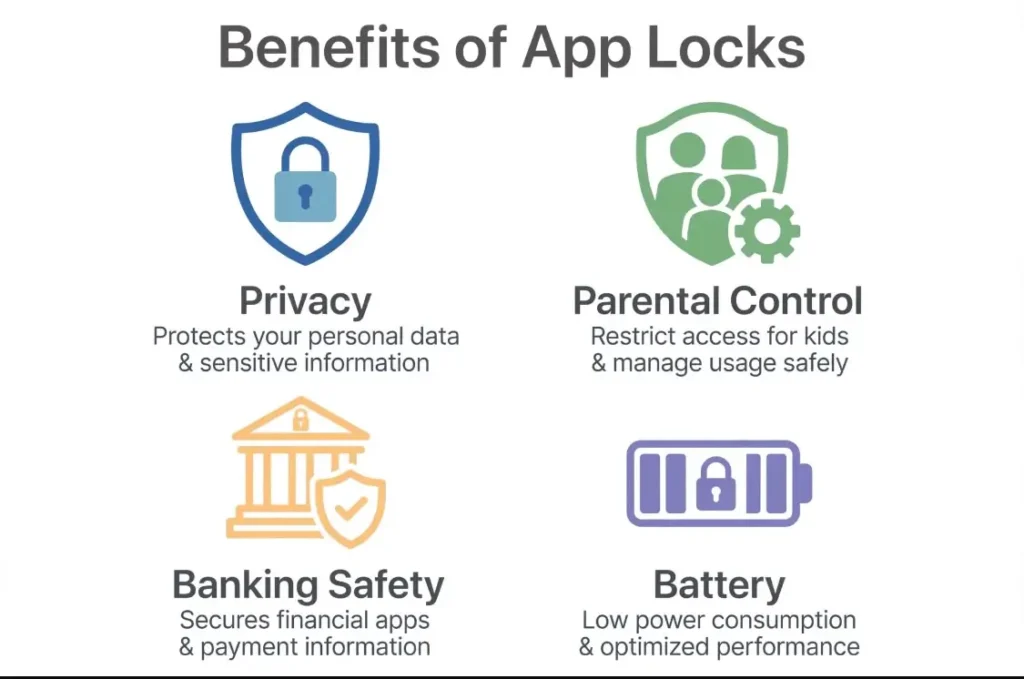
Why People Use App Locks for Everyday Privacy
An app lock is mainly useful when your phone may be accessed by another person while it is already unlocked.
Keep Private Chats Away From Curious Hands
Locking messaging apps can add another barrier between your private conversations and someone using your phone.
This can be especially useful when you lend your phone to a friend or family member for a short time.
Protect Personal Photos and Videos
Gallery and photo apps often contain information that you may not want other people to browse.
A lock can make accidental or unwanted access more difficult.
Add Protection to Financial Apps
A locked banking or payment application can provide another authentication step before someone can open the app.
However, an app lock should not replace your bank’s own security features, device passcode, or two-factor authentication.
Control What Children Can Open
Parents may also use app restrictions to prevent children from opening certain apps, changing settings, or making unwanted purchases.
For stronger parental controls, use the built-in family and screen-time tools provided by the phone platform rather than depending only on a third-party locker.
Are App Locks Safe?
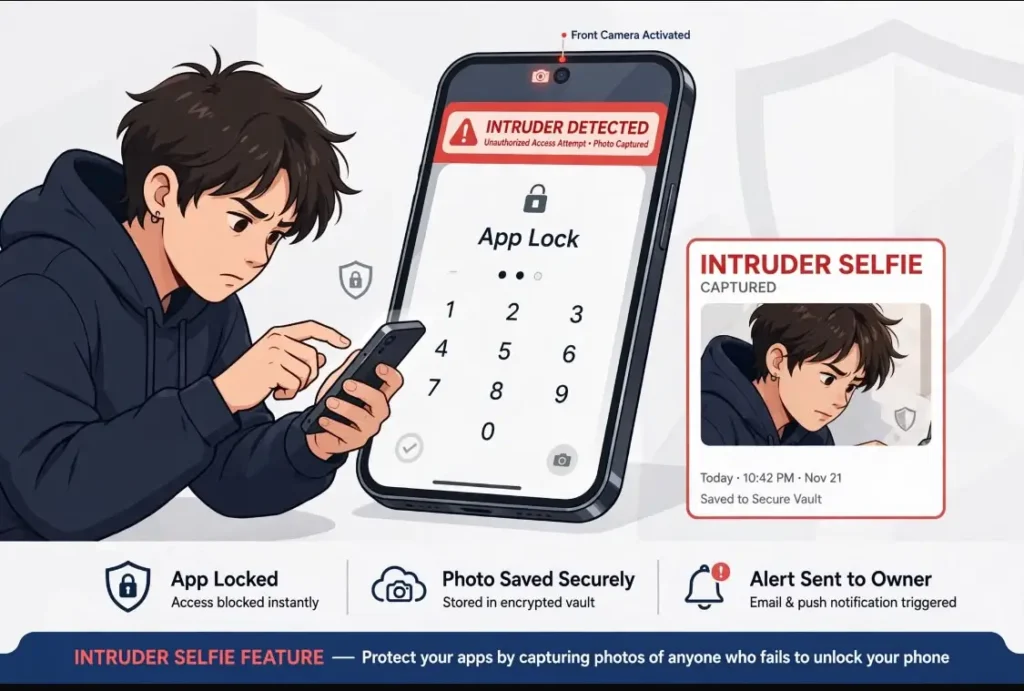
Are app locks safe? They can be, but there is no reason to trust an app simply because its name says “App Lock.”
The biggest question is what permissions the app receives and who developed it.
An app locker may need special access to perform its main function. That does not automatically make it unsafe, but it means you should examine the app more carefully.
Check Permissions Before You Install
Look at the permissions and special access requested by the app.
If an app-locking application asks for access that has nothing to do with locking apps, that should make you stop and investigate.
Android recommends that apps request only the permissions needed for their functionality.
Look at Developer and Update Information
Before installing an app locker, check:
- Developer name
- Recent update date
- Number and quality of reviews
- Privacy information
- Permissions and special access
- Whether the app is still actively supported
- Whether the app contains ads or in-app purchases
A large download number alone does not prove that an app is the right choice for your phone.
Avoid Random APK Versions
Third-party APK websites can contain modified or outdated versions of applications.
For security-sensitive tools such as app lockers, downloading from a trusted official source is generally preferable to installing an unknown modified APK.
A 2026 Update: Norton App Lock Is No Longer Available
One important correction to many older app-lock articles is Norton App Lock.
Norton officially discontinued Norton App Lock, and support ended on June 11, 2024. Norton also stated that the app would no longer be available through Google Play after that date and that it would not receive further product updates or support.
Therefore, it should not be presented as a current safest app lock for Android in 2026.
If you see an old article recommending Norton App Lock, check its publication date before following that advice.
What About AppLock by DoMobile?
There are still third-party Android app-lock products available.
For example, an AppLock listing on Google Play currently shows 100M+ downloads, more than a million reviews, ads, and in-app purchases.
That information tells you the app has a large user base, but it does not automatically prove that it is the safest choice for every person.
Before installing any third-party locker, review its current Play Store listing, permissions, developer information, privacy details, and recent update history.
Common Problems With Third-Party App Lockers
Third-party lockers can be useful, but they also have practical disadvantages.
Battery Usage
Some lockers need background activity to detect when protected apps are opened. Depending on the phone and implementation, this can contribute to battery usage.
Ads and Extra Features
Free app lockers may contain advertisements or offer additional features through in-app purchases.
A clean interface and useful features are helpful, but privacy should remain the main consideration when choosing a security application.
Permission Concerns
An app locker may require special access to do its job. The more powerful the permission, the more important it is to understand why the app needs it.
Lockout Problems
If you forget an app-lock PIN or lose access to its recovery method, getting back into your apps can become difficult.
Before enabling a third-party locker, check how account recovery or PIN recovery works.
Compatibility Issues
Android manufacturers and Android versions can handle background services and permissions differently.
As a result, an app lock may work differently after a phone update or on another Android device.
When the Built-In Phone Feature Is Enough
If your phone already provides a reliable built-in app-lock feature, it is worth checking that option before installing another application.
On iPhone, Apple’s built-in Require Face ID/Touch ID/Passcode feature is designed specifically for locking apps.
Some Android phones also include their own privacy or app-lock features through the manufacturer.
The advantage of a built-in feature is that you do not need to give an unrelated third-party application additional access simply to protect another app.
How to Choose a Safer App Lock
If you still want a third-party Android locker, use this checklist before installing it:
1. Check the developer
Make sure the developer has a clear identity and a history of maintaining its applications.
2. Read recent reviews
Do not focus only on the overall star rating. Look for recent comments about crashes, unwanted ads, permissions, and updates.
3. Review special access
Pay particular attention to Usage Access, overlay permissions, accessibility access, and other powerful settings.
4. Check the update history
An app that has not been maintained for years deserves extra caution.
5. Read the privacy information
Find out what information the developer says it collects and why.
6. Prefer official stores
Use Google Play or the official app source whenever possible instead of random APK websites.
7. Keep Android and your apps updated
Security updates matter just as much as the app lock itself.
Should You Lock Every App?
Not necessarily.
Locking everything can make your phone harder to use and may create unnecessary problems if you forget a PIN or the locker stops working.
Instead, focus on the apps that contain information you genuinely want to keep private, such as:
- Messaging apps
- Gallery or Photos
- Banking and payment apps
- Personal notes
- Password managers
- Private documents
- Work-related apps
Your phone’s main screen lock should remain your first layer of protection.
A Simple Safety Rule for App Lock Users
An app lock is an extra privacy layer, not a complete security system.
Use a strong phone passcode, keep your operating system updated, enable biometric authentication where appropriate, and protect important accounts with their own security controls.
Also remember that an app lock cannot protect information that you voluntarily share with another person, and it cannot fix a compromised phone or malicious application.
Frequently Asked Questions
How app lock works on Android?
A third-party Android app locker can use system permissions and services to identify when a protected app is opened and then present an authentication screen. The exact method depends on the app, Android version, and phone manufacturer.
Is an app lock safe?
An app lock can be safe when it comes from a trustworthy developer, is actively maintained, and uses permissions that are appropriate for its purpose. However, third-party app lockers can introduce privacy and permission concerns, so they should be checked carefully before installation.
Is there an app lock for iPhone?
Yes. Modern iPhones support Apple’s built-in app locking feature. On supported versions of iOS, touch and hold an app and choose Require Face ID, Require Touch ID, or Require Passcode.
Can I hide an app on iPhone?
Yes. Apple allows supported downloaded apps to be hidden using Hide and Require Face ID. The hidden app is moved to the Hidden folder in the App Library and requires authentication to open.
Is Norton App Lock still available in 2026?
No. Norton discontinued Norton App Lock in 2024, with support ending on June 11, 2024. It should not be treated as a current 2026 recommendation.
Does an app lock stop someone from accessing my whole phone?
No. An app lock protects selected applications. Your main device passcode, fingerprint, Face ID, or other phone-level security remains important.
Final Takeaway: Use the Simplest Protection That Fits Your Phone
Understanding how app lock works makes it easier to decide whether you actually need one.
On Android, third-party lockers can use permissions such as Usage Access or overlay access to identify and protect selected applications. Because these permissions can be powerful, users should check the developer, privacy information, reviews, and requested access before installing one.
On iPhone, the situation is more straightforward. Apple’s built-in app-lock feature lets supported apps require Face ID, Touch ID, or a passcode, while selected downloaded apps can also be hidden.
The most important point for 2026 is that Norton App Lock is discontinued, so older articles recommending it are outdated.
An app lock can add useful privacy protection, but it works best as one part of a wider security setup. Keep your phone updated, use a strong device passcode, review app permissions, and choose privacy tools carefully.
Disclaimer
App-lock features and permissions can change with new Android and iOS versions. The information above reflects the platform and product information available in 2026. Always check the current settings, app-store listing, developer information, and official documentation before installing a security or privacy application.
For More Latest App and Tech Updates, Visit APK Promex