
Have you ever left your phone somewhere and wondered whether someone tried to open your WhatsApp? WhatsApp protects your chats with privacy features, but it does not normally provide a built-in list showing who tried to unlock the app with a wrong PIN.
On Android, an App Lock with an intruder selfie feature can add another layer of protection. When someone enters the wrong App Lock PIN or password, the app may use the front camera to capture a photo, depending on the phone, Android version, permissions, and App Lock settings.
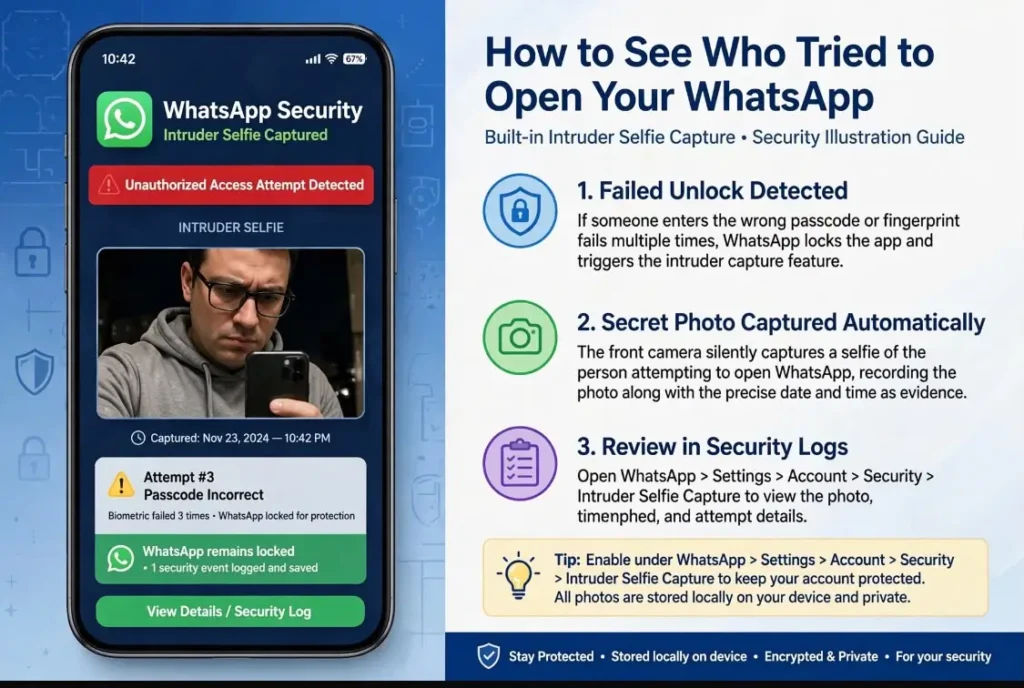
In this guide, you will learn how to set up an intruder selfie for WhatsApp, where to find captured photos, and what this method can and cannot tell you.
Table of Contents
Can WhatsApp Show Who Tried to Open It?
WhatsApp itself does not provide a feature that takes a selfie when somebody enters a wrong password or tries to open your locked WhatsApp.
This is where an App Lock can help. Instead of tracking WhatsApp directly, the App Lock protects WhatsApp with its own security screen. If an incorrect PIN is entered, some App Lock apps offer an intruder capture feature that can take a photo.
This means the photo comes from the App Lock, not from WhatsApp.
How the Intruder Selfie Method Works
The process is simple:
- You install a trusted App Lock.
- You use it to protect WhatsApp.
- You turn on the wrong-PIN photo feature.
- Someone enters an incorrect PIN.
- The App Lock may capture a front-camera photo.
- You can check the saved photo inside the App Lock’s intruder section.
Some apps can also record the failed attempt time and date. Features vary between apps and Android devices, so the exact options may be different on your phone.
How to Enable Intruder Selfie for WhatsApp
Step 1: Install a Suitable App Lock
First, choose an App Lock that supports an intruder selfie, wrong PIN photo, or similar security feature.
If you are using an APK from outside Google Play, download it only from a source you trust and check the permissions before installation.
After installing the App Lock, create a strong PIN or password that other people are unlikely to guess.
Step 2: Add WhatsApp to App Lock
Open the App Lock and look for the list of apps that can be protected.
Select WhatsApp and turn on the lock.
Now, when someone tries to open WhatsApp, the App Lock should ask for the PIN or password before allowing access.
Step 3: Turn On Wrong-PIN Photo Capture
Open the App Lock’s security or intruder settings.
Look for an option with a name such as:
- Take Photo on Wrong PIN
- Intruder Selfie
- Intruder Capture
- Failed Attempt Photo
Turn the feature on and select the number of failed attempts required before taking a photo.
If the app allows you to choose one failed attempt, you can use that setting. However, check the app’s own instructions because some versions may require more than one failed attempt.
Step 4: Give the Required Camera Permission
An intruder selfie feature normally needs access to the phone’s front camera.
When Android asks for camera permission, review what the app is requesting before allowing it.
Without the required permission, the photo feature may not work.
Step 5: Check the Intruder Gallery
After somebody enters the wrong App Lock PIN, open the App Lock and check its Intruder Gallery or similar section.
If the feature worked correctly, you may see the captured image along with information such as the failed attempt time or date.
The exact information depends on the App Lock you use.
What Does the Intruder Selfie Actually Capture?
The feature is designed to capture the person using the phone when an incorrect unlock attempt occurs.
For example, if you leave your phone on a table and somebody tries to open your protected WhatsApp, the App Lock may activate the front camera after the wrong PIN is entered.
The result can include:
- A front-camera photo
- Failed unlock information
- Date of the attempt
- Time of the attempt
- Number of failed attempts
Not every App Lock provides all of these details, so check the features of the particular app you install.
Why WhatsApp Cannot Identify the Intruder by Itself
It is important to understand the difference between WhatsApp and an App Lock.
WhatsApp can provide security features such as app authentication and other privacy controls, but it does not normally show a camera photo of somebody who entered the wrong app password.
The intruder selfie method works because the App Lock controls access before WhatsApp opens.
So, if you see an intruder photo, it does not mean WhatsApp secretly took the picture. The App Lock created the capture as part of its security feature.
Does This Method Work on Every Android Phone?
Not necessarily.
Intruder selfie features can behave differently depending on:
- Android version
- Phone manufacturer
- Camera permissions
- App Lock version
- Background activity restrictions
- Battery optimization settings
- Device security settings
Some Android phones may restrict background camera access or stop an App Lock from running correctly.
If the photo is not captured, check the App Lock permissions and Android battery settings first.
What If the Intruder Selfie Is Not Working?
If you tested the feature and no photo appeared, try these checks.
Check Camera Permission
Go to Android’s app permissions and make sure the App Lock has the camera permission it needs.
Check Battery Restrictions
Some phones aggressively close background apps. If the App Lock keeps stopping, review its battery or background activity settings.
Check the App Lock Settings
Make sure WhatsApp is actually protected and that the wrong-PIN photo option is enabled.
Test It Yourself
After completing the setup, lock your phone and deliberately enter an incorrect App Lock PIN once.
Then open the intruder gallery and check whether a photo was created.
Avoid repeatedly entering wrong passwords if the App Lock has a lockout or security delay.
Is an Intruder Selfie Safe to Use?
An intruder selfie can be useful for personal phone security, but you should consider the privacy permissions involved.
An App Lock with camera access can potentially access the camera when its feature is triggered. That is why it is important to use a trustworthy application and review its permissions.
Before installing an App Lock, check:
- Who developed the app
- What permissions it requests
- Where captured photos are stored
- Whether photos are uploaded anywhere
- Whether email alerts are optional
- Whether you can delete captured images
Avoid installing unknown APK files simply because they promise advanced spying or tracking features.
Can You See Someone Who Opened WhatsApp Successfully?
The intruder selfie feature is mainly designed for failed unlock attempts.
If someone already knows your App Lock PIN and successfully opens WhatsApp, the feature may not treat that as an incorrect attempt.
This is why you should also use a strong App Lock PIN and avoid sharing it with other people.
WhatsApp’s own privacy and security settings should also be kept up to date.
More Android Gaming Guides on APKPromex
If you are exploring other Android gaming and earning apps, you can also check our related guides:
- 666C Game– Explore the 666C Game APK guide.
- 88ka Game– Explore the app, features, and installation details.
- 666W Game APK – Explore the app, features, and installation details.
- JEETO999 Game APK – Read about the platform and Android access.
- 1PPP Game APK – Check the available gaming information and important details.
- Bet55 APK – Explore the Android APK and platform guide.
- QZR888 Game APK – Learn more about the QZR888 gaming platform.
- 88DD Game APK – Check the latest Android gaming information.
- 188PK APK – Explore the 188PK Game APK guide.
- 777CB APK – Read the Android installation and platform guide.
- Royal X Casino – Learn about the Royal X Casino APK.
- HE786 Game APK – Explore its download and latest-version information.
- FD777 APK – Check the Android game guide.
- 666A Game APK – Learn about the platform.
- 356PK Game APK – Explore the Bet55 Game APK guide.
- WU777 Game APK – Check its Android download information.
- X66 Game APK – Read about the X66 gaming platform.
- AJ03 APK – Explore the AJ03 Android APK guide.
- 9999Win Game – Learn about the Game APK.
- DK11 apk – Check the Game APK guide.
- 88EF GAME– Explore the WinPKR Android gaming platform.
Final Thoughts on WhatsApp Intruder Selfies
If you want to know whether somebody tried to access your WhatsApp while you were away, an App Lock with an intruder selfie feature can provide an extra layer of information on supported Android phones.
The important point is that this is not a hidden WhatsApp tracker. The App Lock protects WhatsApp and can capture a front-camera photo when its wrong-PIN condition is triggered.
Before using any third-party App Lock, check its permissions, privacy practices, and reliability. Features can also vary between Android phones and app versions.
Disclaimer
This article is for general information and phone-security education. Intruder selfie features depend on the App Lock, Android version, device settings, permissions, and camera access. Do not use security features to secretly photograph or monitor people in ways that violate their privacy or local laws.
For More Latest App and Tech Updates, Visit APK Promex